How to Connect MetaMask to Uniswap: Complete Step-by-Step Guide 2025
Learn how to safely connect your MetaMask wallet to Uniswap in 5 minutes. Complete tutorial with screenshots, troubleshooting, and security tips for DeFi beginners.
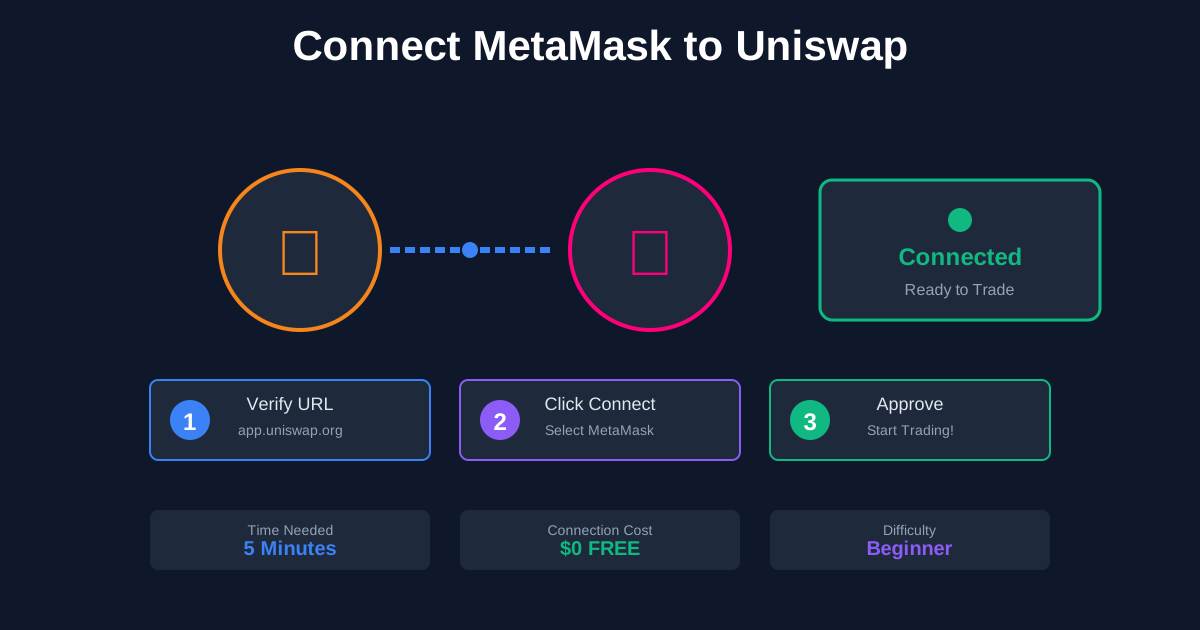
How to Connect MetaMask to Uniswap: Complete Step-by-Step Guide 2025
Want to start trading on Uniswap but not sure how to connect your MetaMask wallet? You're in the right place.
Connecting MetaMask to Uniswap takes less than 5 minutes and requires zero technical expertise. This guide will walk you through every single step with clear instructions and show you exactly what to expect.
By the end, you'll be ready to make your first decentralized trade with confidence.
What You'll Learn
✅ How to connect MetaMask to Uniswap safely
✅ What to check before connecting (security verification)
✅ How to switch networks on Uniswap
✅ What permissions you're granting and why
✅ Common connection problems and fixes
✅ How to disconnect your wallet
✅ Security best practices
Time needed: 5 minutes
Cost: $0 (connecting is free)
Difficulty: Beginner-friendly
Before You Start: Prerequisites
Make sure you have:
1. MetaMask Installed
- ✅ Browser extension OR mobile app
- ✅ Wallet created with Secret Recovery Phrase backed up
- ✅ At least one network added (Ethereum, Arbitrum, etc.)
Don't have MetaMask yet? Read our Getting Started with DeFi guide first.
2. Some Crypto in Your Wallet
You need:
- Tokens to trade (e.g., USDC, ETH, USDT)
- Gas fees (small amount of ETH or network token)
Minimum recommended:
- $50-100 to trade
- $10-20 for gas (varies by network)
3. Internet Connection
- ✅ Stable connection
- ✅ Not using public WiFi (security risk)
- ✅ No VPN issues that might block wallet connection
Step 1: Verify You're on the Real Uniswap (Critical!)
Before connecting anything, verify the website URL.
The ONLY Official Uniswap URLs:
✅ app.uniswap.org (Main app)
✅ uniswap.org (Official website)
Common Scam URLs (DO NOT USE):
❌ uniswap.com
❌ uniswap.io
❌ app-uniswap.org
❌ uniswap-app.org
❌ Any URL with extra words or hyphens
How to Verify:
Method 1: Type URL manually
- Open new browser tab
- Type:
app.uniswap.org - Press Enter
- Check URL bar shows exact match
Method 2: Use bookmark
- Visit app.uniswap.org once
- Bookmark it (Ctrl+D or Cmd+D)
- Always use bookmark to access
Method 3: Check SSL certificate
- Click padlock icon in address bar
- Click "Certificate"
- Verify issued to: uniswap.org
- Issued by: legitimate certificate authority
⚠️ WARNING: Phishing sites look IDENTICAL to real Uniswap
They will:
- Copy the exact design
- Show fake balances
- Drain your wallet when you connect
Always double-check the URL before connecting!
Step 2: Connect MetaMask to Uniswap (Desktop)
Step-by-Step Instructions:
1. Go to Uniswap
- Open browser
- Navigate to: app.uniswap.org
- Page will load with "Connect Wallet" button
2. Click "Connect Wallet"
- Top right corner of page
- Button usually says "Connect" or "Connect Wallet"
3. Select MetaMask
You'll see a popup with wallet options:
- MetaMask
- WalletConnect
- Coinbase Wallet
- Others...
Click "MetaMask"
4. MetaMask Popup Appears
MetaMask will open automatically showing:
Connect with MetaMask

app.uniswap.org wants to:
□ See address, balance, activity
□ Suggest transactions to approve

Account: [Your account name]
Address: 0x742d...0bEb
5. Review Permissions
What Uniswap can see:
- ✅ Your wallet address (public info)
- ✅ Your token balances (to show in interface)
- ✅ Your past transactions (to show history)
What Uniswap CANNOT do:
- ❌ Move your funds without approval
- ❌ Access your Secret Recovery Phrase
- ❌ Make transactions without your confirmation
6. Select Account (if you have multiple)
- Choose which account to connect
- Can connect multiple accounts
- Can switch accounts later
7. Click "Next"
8. Click "Connect"
MetaMask will show confirmation:
- "Connected" with green dot
- Site can now see your balance
- You can now use Uniswap
9. Verify Connection
Check Uniswap interface shows:
- Your wallet address (top right)
- Your token balances
- "Connected" status (green indicator)
✅ You're connected! Ready to trade.
Step 3: Select the Right Network
Uniswap works on multiple blockchains. Pick the right one.
Available Networks on Uniswap:
-
Ethereum (Mainnet)
- Most liquidity
- Highest gas fees ($10-50/tx)
- Best for large trades ($1,000+)
-
Arbitrum
- Layer 2 (built on Ethereum)
- Low gas fees ($0.50-2/tx)
- Recommended for most users
-
Polygon
- Separate chain
- Very low gas fees ($0.01-0.10/tx)
- Good liquidity
-
Optimism
- Layer 2
- Low gas fees ($0.40-1.50/tx)
- Growing ecosystem
-
Base
- Coinbase's Layer 2
- Low gas fees ($0.30-1/tx)
- Newer but growing fast
-
BNB Chain (BSC)
- Separate chain
- Low fees
- Large ecosystem
How to Switch Networks:
Method 1: In Uniswap Interface
- Look for network selector (top of page)
- Click current network name
- Select desired network from dropdown
- MetaMask will prompt you to switch
- Click "Switch network" in MetaMask popup
- Page will reload on new network
Method 2: In MetaMask First
- Click MetaMask extension
- Click network dropdown (top of MetaMask)
- Select network
- Return to Uniswap tab
- Page will detect network and update
Choosing the Right Network:
Use Arbitrum if:
- Trading amounts < $5,000
- Want low fees
- Need good liquidity
- First time using Uniswap
Use Ethereum if:
- Trading amounts > $10,000
- Trading rare/new tokens (might only be on Ethereum)
- Need absolute best liquidity
- Don't mind higher fees
Use Polygon/Base/Optimism if:
- Trading very small amounts
- Testing/learning
- Want absolute cheapest fees
- Token exists on that chain
Pro Tip: Same token can have different prices on different chains. Use our Token Price Calculator to compare.
Step 4: Approve Token Spending (When Trading)
When you make your first trade, you'll need to approve tokens.
What is Token Approval?
Before Uniswap can use your tokens, you must give permission.
Example:
- You want to swap 100 USDC for ETH
- First transaction: "Approve" Uniswap to use your USDC
- Second transaction: Actual swap
How Approval Works:
1. You click "Swap" on Uniswap
2. MetaMask shows "Approve" request first:
Allow app.uniswap.org to spend your USDC?

Proposed approval limit:
[X] Max amount
[ ] Custom spending cap

Estimated gas fee: $0.85
3. Choose approval amount:
Option A: Max Amount (Default)
- Approve unlimited USDC
- Never need to approve again
- Saves gas on future trades
- ⚠️ Slightly less secure (if Uniswap hacked)
Option B: Custom Amount
- Approve only what you need now (e.g., 100 USDC)
- Need to approve again for next trade
- Costs extra gas each time
- ✅ More secure
Recommendation for beginners: Use max amount with established protocols (Uniswap, Aave). They're heavily audited and safe.
4. Click "Approve"
5. Wait for confirmation (10-60 seconds)
6. Now you can do the actual swap
Approval Gas Costs:
- Ethereum: $5-20 per approval
- Arbitrum: $0.30-1
- Polygon: $0.01-0.05
Pro Tip: On expensive networks (Ethereum), approving max amount once saves money long-term.
Step 5: Making Your First Trade
Now you're connected and ready to trade!
Complete Trade Walkthrough:
1. Select tokens to swap
- "From" token (what you're selling)
- "To" token (what you're buying)
2. Enter amount
- Type amount in "From" field
- "To" field auto-calculates
3. Review trade details:
You pay: 100 USDC
You receive: ~0.046 ETH ($99.50)

Rate: 1 ETH = 2,173.91 USDC
Price impact: <0.01%
Network fee: $0.87
Check:
- ✅ Rate looks correct (compare to CoinGecko)
- ✅ Price impact < 1% (low slippage)
- ✅ Network fee reasonable
- ✅ Minimum received acceptable
4. Click "Swap"
5. Review final confirmation popup
6. Click "Confirm Swap"
7. MetaMask opens with transaction
Uniswap: Swap

From: 100 USDC
To: ~0.046 ETH

Gas fee: $0.87
Total: $0.87
8. Click "Confirm" in MetaMask
9. Wait for transaction (10-60 seconds)
Progress shown on Uniswap:
- "Swapping..." (yellow)
- "Success!" (green) ✅
10. Check your wallet
- USDC balance decreased
- ETH balance increased
- Transaction in MetaMask history
🎉 You just made your first Uniswap trade!
Mobile: Connecting MetaMask to Uniswap
Process is slightly different on mobile:
Method 1: MetaMask Browser (Recommended)
1. Open MetaMask app
2. Tap browser icon (bottom menu)
3. Type in URL bar: app.uniswap.org
4. Uniswap loads already connected
- No separate connection needed!
- MetaMask browser auto-connects
5. Select network (top of page)
6. Start trading
Method 2: WalletConnect
If using phone's regular browser:
1. Go to app.uniswap.org in browser (Safari, Chrome)
2. Tap "Connect Wallet"
3. Select "WalletConnect"
4. QR code appears OR app opens
5. MetaMask opens automatically
6. Tap "Connect"
7. Return to browser → Connected!
Pro Tip: MetaMask browser is easier for mobile. No switching between apps.
Common Connection Problems & Solutions
Problem 1: "Connect" Button Does Nothing
Possible causes:
- MetaMask not installed
- Wrong browser
- Extension disabled
- Browser cache issue
Solutions:
Try 1: Refresh the page (Ctrl+R or Cmd+R)
Try 2: Check MetaMask is installed
- Look for fox icon in extensions
- Click icon to open MetaMask
- If not there, reinstall
Try 3: Try different browser
- Chrome usually works best
- Also try: Brave, Edge, Firefox
Try 4: Clear cache
- Settings → Privacy → Clear browsing data
- Select "Cached images and files"
- Clear and retry
Try 5: Disable other wallet extensions
- Other wallets can conflict
- Disable Coinbase Wallet, Trust Wallet, etc.
- Keep only MetaMask enabled
Problem 2: MetaMask Shows "Request Already Pending"
Cause: Previous connection request stuck
Solution:
- Open MetaMask
- Look for pending requests (notification icon)
- Approve or reject old request
- Try connecting again
Or:
- Close all browser tabs with Uniswap
- Close MetaMask popup
- Refresh MetaMask extension
- Open new Uniswap tab
- Try again
Problem 3: Wrong Network Selected
Symptoms:
- Can't find your tokens
- Balance shows $0
- Can't trade
Cause: Connected to wrong network
Solution:
- Check which network Uniswap shows (top of page)
- Check which network MetaMask shows
- If different, click network in Uniswap
- Select correct network
- Approve network switch in MetaMask
Remember: Your tokens exist on specific networks. USDC on Arbitrum ≠ USDC on Ethereum.
Problem 4: "Insufficient Funds for Gas"
Cause: Don't have gas token for that network
Gas tokens by network:
- Ethereum: ETH
- Arbitrum: ETH
- Polygon: MATIC
- BSC: BNB
- Base: ETH
- Optimism: ETH
Solution:
Buy small amount of gas token:
- $10-20 ETH (for Ethereum/Arbitrum/Base/Optimism)
- $5-10 MATIC (for Polygon)
- $5-10 BNB (for BSC)
How to get gas:
- Buy on exchange, withdraw to wallet
- Use cross-chain bridge
- Buy directly in MetaMask (via on-ramp)
Problem 5: Connection Drops Randomly
Cause: Browser auto-locking MetaMask
Solution:
- Open MetaMask
- Settings → Advanced
- Enable "Auto-lock timer"
- Set to longer time (30+ minutes)
- Or disable auto-lock
Also:
- Keep MetaMask tab open
- Don't switch networks while transacting
- Maintain stable internet connection
Problem 6: Can't See Tokens in Uniswap
Cause: Network mismatch or token not imported
Solutions:
Check 1: Verify correct network
- Tokens on Arbitrum? Must use Arbitrum network
- Click network selector to switch
Check 2: Import custom token
- Click token selector dropdown
- Scroll to bottom
- Click "Import token"
- Paste token contract address
- Token appears
Check 3: Refresh balances
- Disconnect wallet
- Reconnect
- Balances should update
How to Disconnect MetaMask from Uniswap
Method 1: Disconnect in Uniswap
- Click your address (top right)
- Click "Disconnect"
- Wallet disconnected
Method 2: Disconnect in MetaMask
- Click MetaMask extension
- Click three dots (···)
- Select "Connected sites"
- Find "app.uniswap.org"
- Click "Disconnect"
Method 3: Remove Uniswap Connection Entirely
- MetaMask → Settings
- Click "Connected sites"
- Find Uniswap
- Click trash icon
- Confirm removal
When to disconnect:
- Finished trading for the day
- Using shared/public computer
- Suspect security issue
- Want to switch accounts
Security Best Practices
Before Every Connection:
✅ Verify URL (app.uniswap.org exactly)
✅ Check SSL certificate (padlock icon)
✅ Review permissions in MetaMask popup
✅ Never connect on public WiFi
✅ Don't connect if URL looks suspicious
After Connecting:
✅ Double-check connected address (top right)
✅ Verify network matches your tokens
✅ Start with small test trade ($10-50)
✅ Monitor approvals using Revoke.cash
✅ Disconnect when done
Red Flags (Never Connect If You See):
🚨 Pop-up asking for Secret Recovery Phrase
🚨 Request to "confirm" wallet by sending crypto
🚨 Unusual permissions (access to files, etc.)
🚨 URL doesn't match app.uniswap.org
🚨 Site looks slightly different than usual
🚨 Unexpected connection requests while browsing
If something feels wrong, DON'T connect. Close tab and verify URL.
Advanced: Multiple Accounts & Networks
Connecting Multiple MetaMask Accounts:
1. In MetaMask: Switch to account you want to add
2. In Uniswap: Click your address → "Change account"
3. Select additional accounts
4. Click "Connect"
All selected accounts now accessible in Uniswap.
Switching Between Connected Accounts:
- Click your address (top right)
- See list of connected accounts
- Click account to switch to
- Interface updates with that account's balances
Managing Network Connections:
Add network to MetaMask:
- Visit network's official bridge site
- Click "Add to MetaMask" button
- Approve in MetaMask popup
- Network now available in network dropdown
Switch networks:
- In MetaMask: Click network dropdown
- In Uniswap: Click network selector (top)
Both methods work. Choose whichever is easier.
Connection Checklist
Before each Uniswap session:
Pre-Connection:
□ Verified URL is app.uniswap.org
□ MetaMask unlocked
□ On correct network
□ Have gas tokens

During Connection:
□ Reviewed permissions
□ Connected correct account
□ Verified address shown correctly
□ Network matches my tokens

Before Trading:
□ Selected correct network
□ Balances shown correctly
□ Token list loaded
□ Gas fees reasonable

After Trading:
□ Transactions confirmed
□ Balances updated correctly
□ Disconnected wallet (if on shared device)
□ Checked transaction on block explorer
Comparison: MetaMask vs Other Wallet Connections
| Feature | MetaMask | Coinbase Wallet | WalletConnect | |---------|----------|-----------------|---------------| | Ease of Use | ⭐⭐⭐⭐⭐ | ⭐⭐⭐⭐ | ⭐⭐⭐ | | Desktop | ✅ Extension | ✅ Extension | ❌ Mobile only | | Mobile | ✅ App | ✅ App | ✅ Any wallet | | Speed | Fast | Fast | Medium | | Reliability | Excellent | Excellent | Good | | DeFi Support | 99% sites | 90% sites | 95% sites | | Network Options | All major | Most major | All major |
Winner: MetaMask for most users (best compatibility + features)
What to Do After Connecting
1. Test Connection
Make small test trade:
- $10-20 amount
- Verify everything works
- Check gas fees reasonable
- Confirm transaction completes
2. Explore Interface
Get familiar with:
- Token selector
- Network switcher
- Price charts
- Transaction history
- Settings
3. Set Up Analytics
Track your activity:
- Use DeBank to monitor wallet
- Check transaction history in MetaMask
- Bookmark Uniswap + block explorer for your network
- Set up our Token Price Calculator
4. Learn More Features
Uniswap offers:
- Limit orders (set specific price)
- Add liquidity (earn fees)
- Token analytics
- Portfolio tracking
Next guides to read:
- Setting Up Your First Liquidity Position
- Understanding Gas Fees on Ethereum
- Getting Started with DeFi
Frequently Asked Questions
Does connecting cost money?
No. Connecting is free. You only pay gas when making transactions.
Can Uniswap steal my crypto after connecting?
No. Uniswap can only SEE your balance. They cannot MOVE funds without you approving each transaction in MetaMask.
Do I need to disconnect after each use?
Not required, but recommended for security—especially on shared devices.
Can I connect multiple wallets?
Yes. You can connect multiple MetaMask accounts or even multiple different wallets (MetaMask + Coinbase Wallet, etc.).
What if I connected to a fake Uniswap site?
- Immediately disconnect in MetaMask
- Go to Revoke.cash
- Connect wallet and revoke all approvals
- Move funds to new wallet if needed
- Only use real site: app.uniswap.org
Why does MetaMask keep asking me to sign messages?
Some are normal (approvals, transactions). If excessive or unusual, disconnect and investigate.
Can I use Uniswap without MetaMask?
Yes. You can use Coinbase Wallet, Trust Wallet, Ledger, or any WalletConnect-compatible wallet.
What's the difference between V2 and V3 Uniswap?
V3 is newer with better features. Most users should use V3 (the default on app.uniswap.org).
Common Misconceptions
❌ "Connecting gives Uniswap control of my wallet"
Reality: They can only see balance and suggest transactions. You approve every action.
❌ "I need to buy UNI tokens to use Uniswap"
Reality: UNI is just governance token. Not needed for trading.
❌ "Higher slippage = better price"
Reality: Higher slippage means you accept worse prices. Keep it low (0.5-1%).
❌ "I must use Ethereum network"
Reality: Uniswap works on many networks. L2s much cheaper for most trades.
❌ "Disconnecting removes my approvals"
Reality: Approvals remain until manually revoked. Disconnecting just ends the viewing session.
Next Steps
You can now:
✅ Connect MetaMask to Uniswap safely
✅ Switch between networks
✅ Understand approvals and permissions
✅ Troubleshoot common problems
✅ Keep your wallet secure
Continue learning:
- Getting Started with DeFi - Complete beginner's guide
- Setting Up First Liquidity Position - Earn fees as liquidity provider
- Understanding Impermanent Loss - Critical for LPs
Use our tools:
- Token Price Calculator - Compare prices across DEXs
- Impermanent Loss Calculator - Calculate LP risks
- Gas Fee Calculator - Estimate transaction costs
Final Tips
Start small: Your first trades should be $10-50 to learn the interface risk-free.
Use Arbitrum: Save 95% on gas compared to Ethereum for small/medium trades.
Bookmark the real URL: Always access via bookmark to avoid phishing sites.
Double-check everything: Verify network, amount, token, and gas before confirming.
Keep learning: DeFi has depth. Each trade teaches you something new.
Welcome to decentralized trading! You now have the power to trade 24/7 without permission from any centralized exchange.
Ready to make your first trade? Connect your wallet and start exploring! 🦊🔵
Quick Reference Card
Save this:
Official Uniswap URL:
✅ app.uniswap.org

Connection Steps:
1. Verify URL
2. Click "Connect Wallet"
3. Select MetaMask
4. Review permissions
5. Click "Connect"
6. Select network
7. Start trading

Emergency:
□ Disconnect: Click address → Disconnect
□ Revoke approvals: revoke.cash
□ Block explorer: [network]scan.io

Support:
□ Uniswap help: support.uniswap.org
□ MetaMask help: support.metamask.io
□ Our guides: web3calc.com/guides
Now go connect and start trading! 🚀
Share this article:
Related Articles
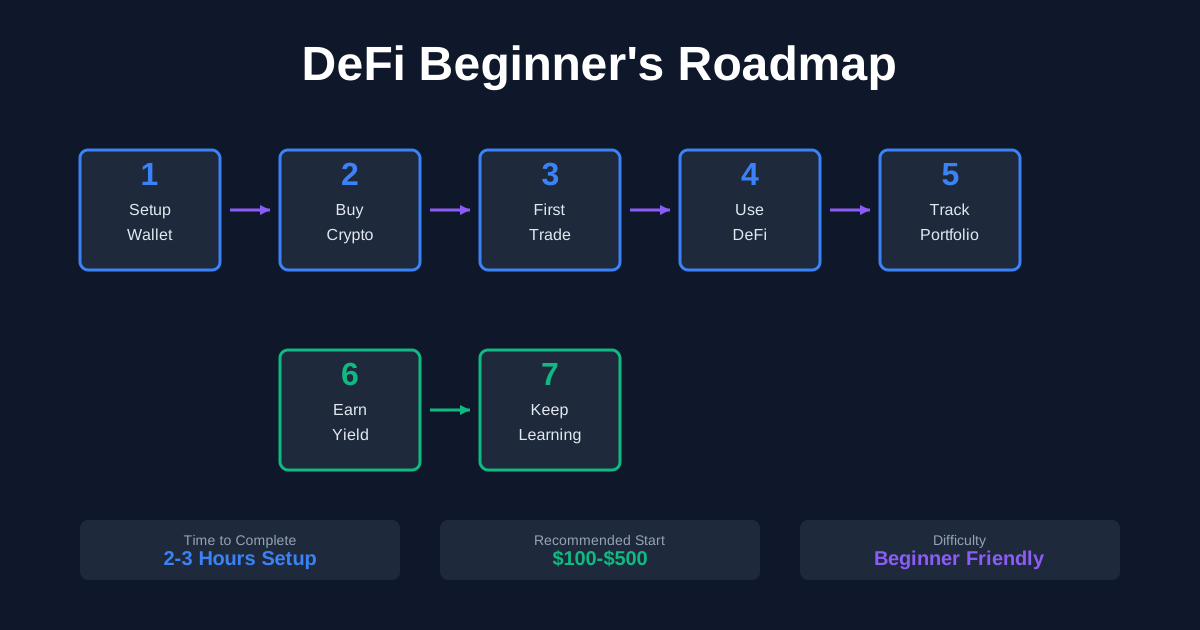
Getting Started with DeFi: Complete Beginner's Roadmap 2025
Your complete step-by-step guide to starting in DeFi. Learn the fundamentals, set up your wallet, make your first trades, and avoid costly mistakes as a DeFi beginner.
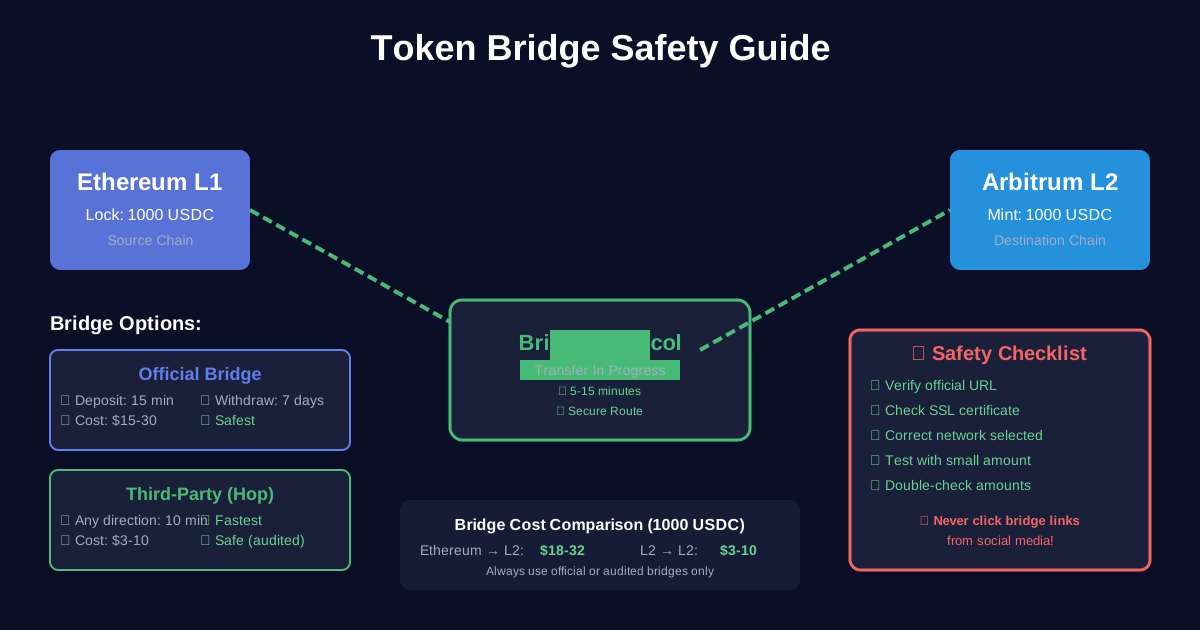
How to Bridge Tokens Between Chains: Complete Safety Guide 2025
Learn to safely bridge crypto between Ethereum, Arbitrum, Base, and other chains. Complete guide covering official bridges, cross-chain protocols, and avoiding scams.
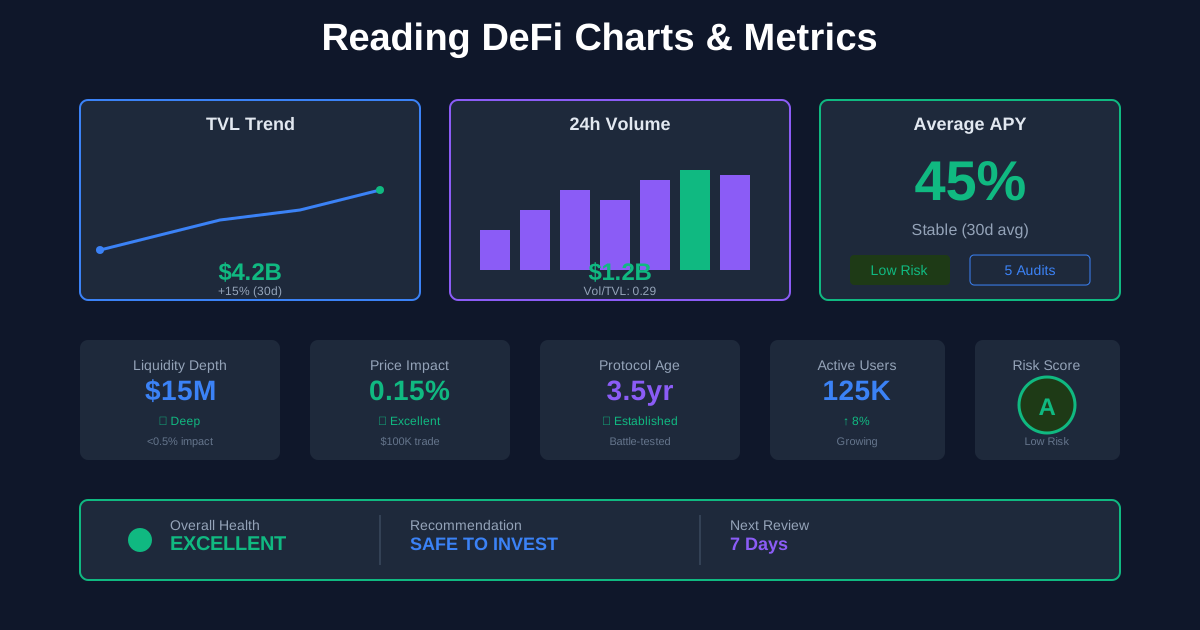
How to Read DeFi Charts and Metrics: Complete Analytics Guide 2025
Master DeFi analytics with this complete guide to reading charts and metrics. Learn to interpret TVL, APY, volume, liquidity depth, and make data-driven investment decisions.